Bulk remove backgrounds for WooCommerce product photos
A WooCommerce catalogue looks better when every product sits on the same clean background. The free LassoCut plugin for WordPress does this from the screens you already use: select products, choose one bulk action, and each product gets a cut-out as its main image while the original photo stays in the Media Library. Here is how it works, what it costs for a whole catalogue, and how to get consistent results.
On this page: Who this is for · Prepare your photos · Install and connect · Step by step · Your originals · Credits for N products · Tips · Questions
Who this is for
Shop owners who want every product photo cleaned up without leaving WordPress, agencies that run several WooCommerce stores, and anyone using the remove.bg WordPress plugin or calling its API from a theme: remove.bg's self-service API and plugins stop on 1 December 2026 (dates and sources in our shutdown guide). The WordPress migration guide lists the switch in three steps. remove.bg credits cannot be used on LassoCut.
1. Prepare your photos
Background removal fixes the background, not the photo:
- Shoot the whole product. A product cut off by the edge of the frame stays cut off after the background is gone.
- Use the largest original you have. The plugin sends the original upload, not the reduced
-scaledcopy WordPress makes of large images, so the cut-out keeps the detail you uploaded. - Check where the photos will be shown. Marketplaces have their own rules. Amazon, for example, asks for a pure white background on the main image: our article on white-background product photos for Amazon quotes the official rules with their source. For other channels, read their help pages before you choose a background colour.
- Pick ten hard photos as a test: hair or fur, glass, a white product on a white table, fine straps or chains. If those come out right, the rest of the catalogue will too.
2. Install and connect the plugin
- In WordPress, go to Plugins → Add New, search for LassoCut, then Install Now and Activate. The plugin page is wordpress.org/plugins/lassocut-remove-background. It needs WordPress 6.0 or later and PHP 7.4 or later.
- Open Settings → LassoCut and click Connect with LassoCut. A new tab opens: sign in with GitHub or Google and approve, and the key is filled in for you. You can also paste an API key from your account. Once connected, the page shows your credits and the free previews available now.
- Choose the Size: Full size (up to 25 megapixels, 1 credit), Preview (up to 0.25 megapixels, 0.25 credit, free previews first) or Largest your credits allow.
- Choose the Background: leave it empty for a transparent PNG, or enter a colour such as
fffffforwhitefor a JPG on that colour. Save.
Both settings apply to every image, so the whole catalogue comes out alike.
3. Remove backgrounds in bulk, step by step
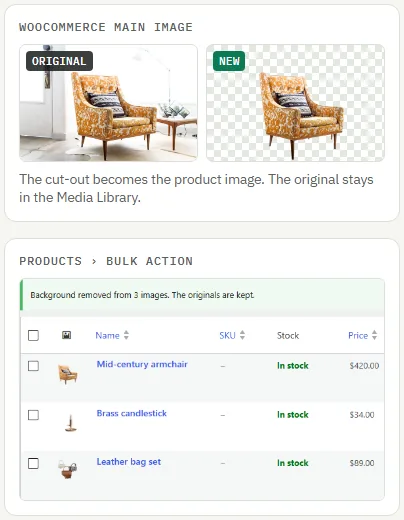
From the Products screen
- Go to Products and tick the products to process.
- In Bulk actions, choose Remove background from main image and click Apply.
- Wait for the page to reload. A notice tells you how many images were done, for example “Background removed from 3 images. The originals are kept.”
For each product, the plugin cuts out the main product image, saves the result as a new image and sets it as the product image. Gallery images are not touched. A product without a main image is reported in the notice and skipped.
From the Media Library
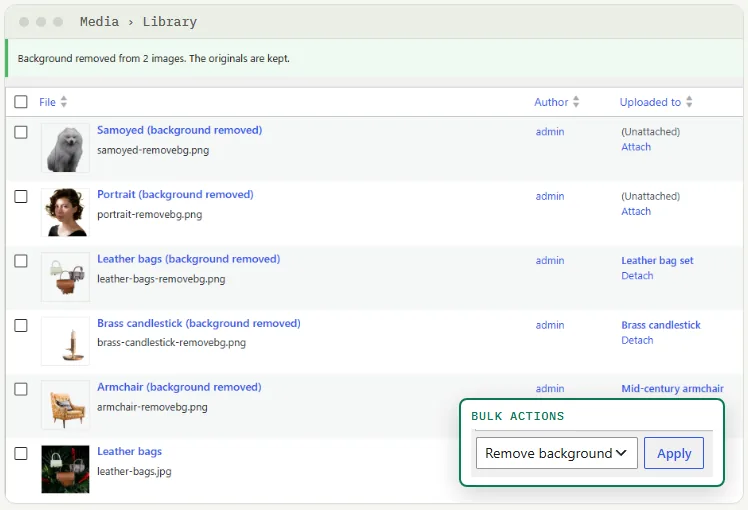
For gallery images, category images or anything else, open Media → Library in list view. Click Remove background under one image, or tick several and choose the Remove background bulk action. The cut-out is added next to the original; nothing is changed on your products.
Ten at a time
Each bulk action processes up to 10 images. If you select more, the first 10 are done and a notice asks you to select the rest and run it again. This keeps every run inside the server's time limit, even when the first image waits for the processing servers to wake up (up to a minute; the next ones take seconds).
For a long product list: in Products, open Screen Options at the top right and set the number of items per page to 10. Then tick the select-all box, apply the bulk action, and move to the next page. Processed products show the cut-out as their thumbnail, so you can see where you stopped. Do not run the action twice on the same product: the second run would cut out the cut-out and use another credit.
A run stops early, without spending more credits, when every later image would fail the same way: no key, an invalid key or no credits left. A retried request is never charged twice.
4. What happens to your originals
- Nothing is overwritten. The cut-out is a new image named after the original file:
chair.jpggiveschair-removebg.pngon a transparent background, orchair-removebg.jpgwhen you set a background colour. - Its title is the original title followed by “(background removed)”, and it gets the same alt text, so your accessibility and image SEO work carries over.
- WordPress generates the usual thumbnail sizes for the new image, including the ones your theme and WooCommerce use.
- The cut-out is attached to the same product. To go back, open the product, remove the product image and pick the original again from the Media Library.
5. How many credits for N products
One full-size cut-out costs 1 credit, so the count is simple: one credit per image you process. With the Products bulk action that is one image per product; add your gallery images if you run them through the Media Library too. A request that returns an error costs nothing.
Every account gets 50 free previews a month, up to 10 a day. Previews are small (up to 0.25 megapixels), enough to judge the edges on your ten test photos but not for a product page. Credit packs are a one-time purchase with no subscription, and purchased credits do not expire while your account is open.
| Job | Credits | Pack that covers it |
|---|---|---|
| 10 test photos as previews | 0 (free previews) | included in every account |
| 80 products, main image only | 80 | 100 credits: $9 |
| 300 products with 2 images each | 600 | 1,000 credits: $39 |
| 4,000 products, main image only | 4,000 | 10,000 credits: $249 |
Prices in US dollars from the pricing page. The same balance works in the web app, the API and the other plugins.
For thousands of images at once, ten per click is slow. Run the folder through the batch tool in your browser instead and upload the results, or see batch background removal for 1,000 product photos for the command line and the API.
To handle new products automatically, without clicking, there is a ready-made n8n workflow for WooCommerce: every hour it gives new products a white-background main image, keeps the original in the gallery and skips products already processed.
6. Tips for a consistent catalogue
- One background colour for the whole shop. Set it once in Settings → LassoCut before the first run. A colour gives JPG files, which are usually smaller than transparent PNG files and load faster on product pages. Keep transparent PNG if your theme places products on its own coloured blocks.
- Crop and frame before you upload. The plugin keeps the original framing; it does not crop or add margins. Products photographed at a similar distance look even in a category grid.
- Mind the image size. Full size goes up to 25 megapixels, far more than a product page shows. Very large uploads only take longer to send.
- For agencies: connect each client's site to the client's own LassoCut account with the Connect button, so the credits and receipts are theirs.
Questions
Does the plugin replace my original product photos?
No. The cut-out is saved as a new image named …-removebg.png (or .jpg with a background colour) next to the original, with the same alt text. For products, the cut-out becomes the main product image and the original stays in the Media Library.
Does it process WooCommerce gallery images?
The Products bulk action handles the main product image only. For gallery images, select them in Media → Library (list view) and use the Remove background bulk action.
How many products can I process at once?
Up to 10 per bulk action. Set the Products list to 10 items per page in Screen Options and go page by page. For thousands of images, use the browser batch tool on a folder and upload the results.
Can I get a white background instead of a transparent one?
Yes. In Settings → LassoCut, enter a colour such as ffffff or white in Background. The results are then JPG files on that colour. Leave the field empty for a transparent PNG.
What does it cost?
Every LassoCut account gets 50 free previews a month, up to 10 a day. A full-size cut-out costs 1 credit, with packs from $9 for 100 credits, no subscription, and credits that do not expire while your account is open.
Try it on your shop
Install the plugin, connect your account and run your ten hardest product photos as free previews before you commit a whole catalogue.
See also: LassoCut for WordPress · e-commerce · pricing.